

AirTags work by sending a secure Bluetooth signal that nearby Apple devices in the Find My network can detect. Those devices privately send the AirTag’s location to iCloud, so the owner can see it in the Find My app. AirTags do not use built-in GPS for live tracking. Long-distance updates depend on nearby Apple devices.
How AirTags Work in Simple Terms
AirTags work by sending out a secure Bluetooth signal. Nearby Apple devices in the Find My network can detect that signal and privately send the AirTag’s location to iCloud. Then, the owner can open the Find My app and see the item’s location on a map.
An AirTag does not track your item with built-in GPS. It works more like a smart item finder. For nearby items, your iPhone can use Bluetooth to help you find the AirTag. For far-away items, the AirTag depends on other Apple devices passing nearby.
The key thing to remember is this: AirTags do not track anywhere on their own. They update when nearby Apple devices can detect them.
What Is an AirTag and What Is It Used For?
An AirTag is Apple’s small item tracker made to help you find personal belongings through the Find My app. You attach it to something you own, like keys, a wallet, a backpack, a suitcase, a camera bag, or a purse. After you link it to your Apple Account, you can see that item in the Find My app on your iPhone, iPad, or another supported Apple device.
In simple terms, an AirTag helps you find things you might misplace or lose. If your keys are somewhere in your house, you can use your iPhone to make the AirTag play a sound. If your suitcase is far away, the AirTag can update its location when another Apple device in the Find My network passes nearby.
AirTags are good for tracking personal items, not people. That difference matters. An AirTag is useful when you want to find a misplaced bag, locate checked luggage, or remember where you left your wallet. It is not designed to follow someone’s live movement like a GPS tracker.
Think of it this way: an AirTag is best for finding lost or misplaced objects. It is not best for real-time tracking.
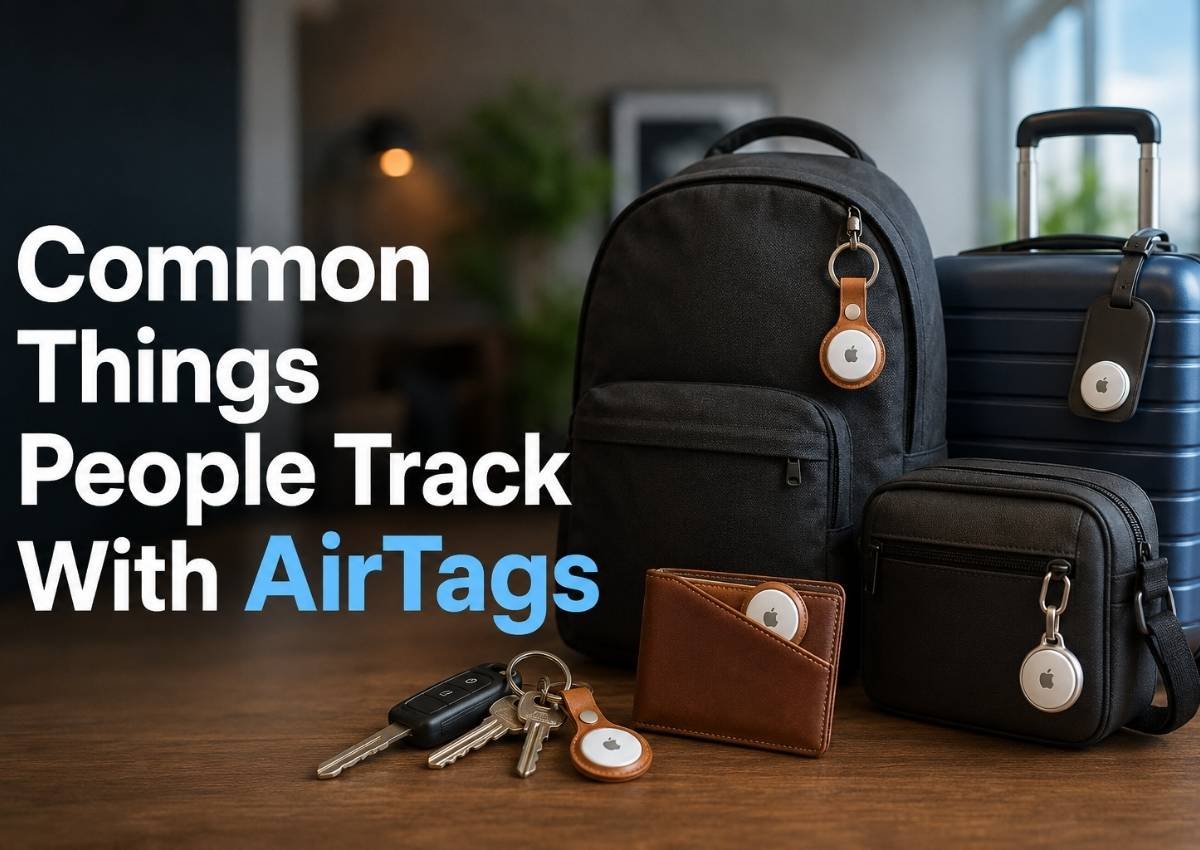
Common Things People Track With AirTags
AirTags are best for personal items that are easy to misplace, forget, or lose while traveling. Common examples include:
- Keys: Attach an AirTag to a key ring so you can play a sound or check the Find My app when they go missing.
- Wallets: Use a slim holder or wallet insert to help locate your wallet if you leave it behind.
- Backpacks: Good for school, work, commuting, or travel bags that move with you often.
- Luggage: Helpful for checked bags, carry-ons, and suitcases at airports or hotels.
- Camera bags: Useful for expensive gear bags that you do not want to lose track of.
- Purses or handbags: Helpful when you switch bags or leave them in cars, cafés, or offices.
For luggage, place the AirTag inside a zipped pocket or hidden compartment. Secure it inside your bag instead of hanging it loosely outside, where someone can remove it or it can fall off easily.
What AirTags Are Not Designed to Track
AirTags are useful for finding personal items, but they are not designed for tracking people or live movement. This is important for safety, privacy, and realistic expectations.
- Good for: Finding your own belongings, such as keys, wallets, backpacks, purses, and luggage.
- Not ideal for: Tracking a person’s real-time location.
- Not ideal for children: AirTag can be placed in a child’s backpack, but it should not be treated like a child safety tracker.
- Not ideal for pets: AirTags may help if a pet is nearby or in a busy area, but they are not true pet GPS trackers.
- Not ideal for vehicles: AirTags can sometimes help locate a car, but they are not made for live vehicle tracking.
For example, a dog running through a rural field may not update if no Apple device is nearby. For live movement, GPS trackers are usually the better choice.
How an AirTag Finds Your Item’s Location
An AirTag finds your item by using a simple location chain. It does not send its location by itself like a GPS tracker. Instead, it waits for nearby Apple devices to help update its position through the Find My network.
- The AirTag sends a Bluetooth signal.
Your AirTag quietly broadcasts a secure Bluetooth signal from inside your bag, wallet, suitcase, or other item. - Nearby Apple devices detect that signal.
If an iPhone, iPad, or other Apple device passes close enough, it can notice the AirTag in the background. - Nearby Apple devices relay the location privately.
That nearby Apple device sends the AirTag’s location to iCloud through the Find My network. The person carrying that device does not see your AirTag, your item, or your Apple Account. - You see the update in Find My.
When you open the Find My app, you may see the item’s latest location on a map.
That is how AirTag tracking works. The nearby Apple device acts only as a private relay, not as someone watching your item.
Nearby Finding vs Lost Item Finding
AirTags work differently depending on whether your item is close to you or far away. Nearby finding uses your own device. Lost item finding depends on the wider Find My network.
| Situation | How It Works |
| When the AirTag is nearby | Your iPhone can connect to the AirTag through Bluetooth. You can use Play Sound to make the AirTag beep, or use Find Nearby if your device supports Precision Finding. Precision Finding can show distance and direction, which helps when your keys are under a couch or your wallet is inside a bag. |
| When the AirTag is far away | Your iPhone usually cannot connect to it directly. Instead, the AirTag waits for nearby Apple devices in the Find My network to detect its Bluetooth signal. When that happens, you may see an updated map location in the Find My app. |
| When no device has detected it recently | The app may show a Last Seen location. This means the item was detected there at that time, but it may not be the item’s live location now. |
Nearby finding is direct. Far-away finding depends on other Apple devices passing close enough to update the location.
What Information your iPhone Shows in the Find My App
In the Find My app, open the Items tab to see your AirTag and its latest details.
- Map location: Shows where the AirTag was last detected by your iPhone or the Find My network.
- Timestamp: It shows when Apple last updated that location. If your AirTag says Last seen, Apple detected the item at that place and time. It may not be live.
- Directions: Opens a route to the shown map location.
- Play Sound: Makes the AirTag beep when it is close enough to connect.
- Find Nearby: Helps guide you to the AirTag if your device supports Precision Finding.
- Notify When Found: Alerts you when the item is detected again.
- Lost Mode: Lets you mark the item as lost and add contact details.
Do AirTags Use GPS or Bluetooth?
No, AirTags do not have built-in GPS. They do not track your item the same way a live GPS tracker does. Instead, an AirTag uses Bluetooth to send out a secure signal. Nearby Apple devices can detect that signal through the Find My network and help update the item’s location in the Find My app.
This is how AirTags work without GPS. The AirTag itself is not using satellites or cellular data to report its position. It depends on nearby Apple devices to pass location updates privately.
For nearby items, supported iPhones can also use Ultra-Wideband for Precision Finding. This can show direction and distance when you are close to the AirTag.
A GPS tracker is different. For example, a GPS tracker in a moving car may report live location using cellular data. An AirTag is better understood as an item finder, not a real-time GPS tracking device.
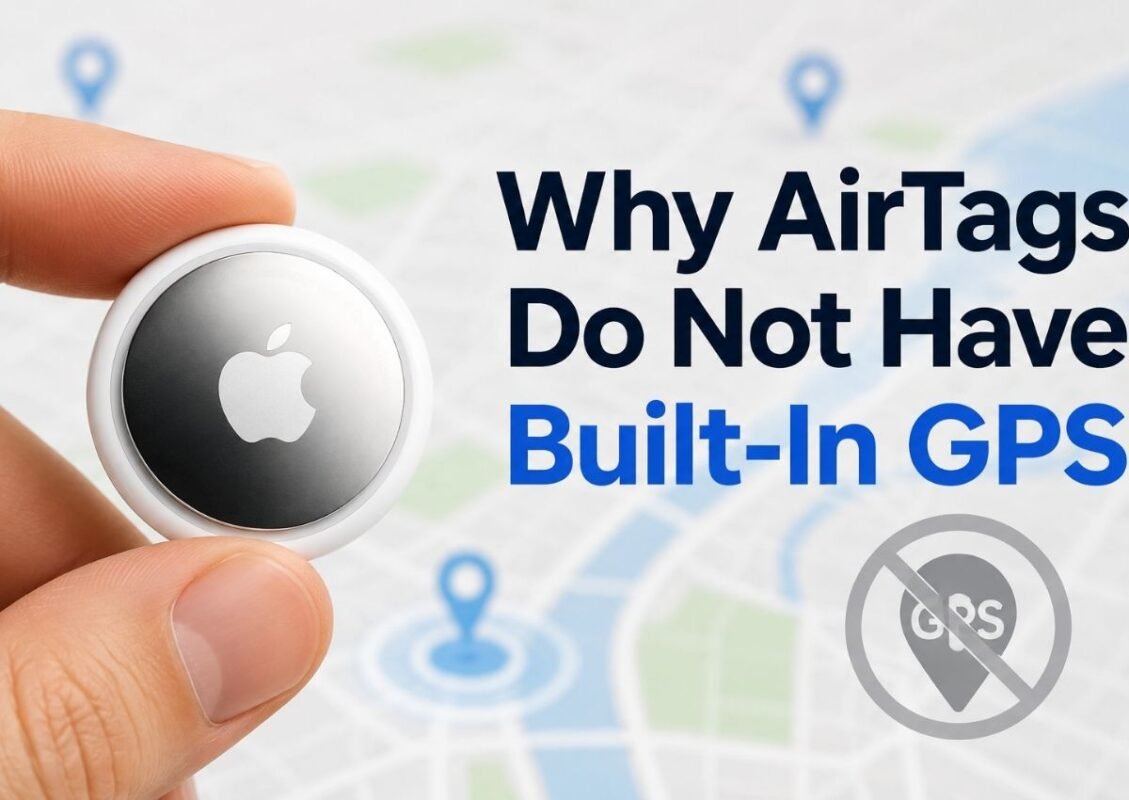
Why AirTags Do Not Have Built-In GPS
GPS tracking means a device uses satellites to find its location, often with cellular data to send that location back in real time. That is how many car, pet, and vehicle GPS trackers work.
AirTags do not use GPS for live tracking. Instead, they send a Bluetooth signal that nearby Apple devices can detect through the Find My network. This design helps keep the AirTag small, light, and efficient enough to run on a small coin battery for a long time.
Adding built-in GPS and cellular tracking would need more power, more hardware, and usually a larger battery. That would make the AirTag bigger and less practical for keys, wallets, bags, and luggage.
So, can an AirTag track in real time? Not like a GPS tracker. It updates when nearby Apple devices detect it, not continuously through satellites.
How Ultra Wideband Helps With Precision Finding
Ultra Wideband, often called UWB, is a short-range wireless technology that helps compatible devices understand distance and direction more accurately.
On supported iPhones, AirTag Ultra Wideband Precision Finding can guide you to a nearby AirTag with on-screen arrows, distance, and movement cues. Instead of only seeing a general map location, your iPhone can help point you toward the item when you are close enough.
But UWB does not replace long-distance tracking. It only helps when the AirTag is nearby. If the item is far away, location updates still depend on the Find My network and nearby Apple devices.
What NFC Does on an AirTag
NFC, or Near Field Communication, lets someone tap an AirTag with a smartphone to view basic Lost Mode information. This is useful when a person finds your lost item and wants to help return it.
If you mark an AirTag as lost in the Find My app, you can add a contact message. Then, if someone finds your bag, they can tap the AirTag with their phone and see the message you chose to share.
This does not give them access to your Apple Account, private location, or Find My app. It only shows the Lost Mode contact details you allow. In simple terms, NFC helps with safe item return, not tracking.
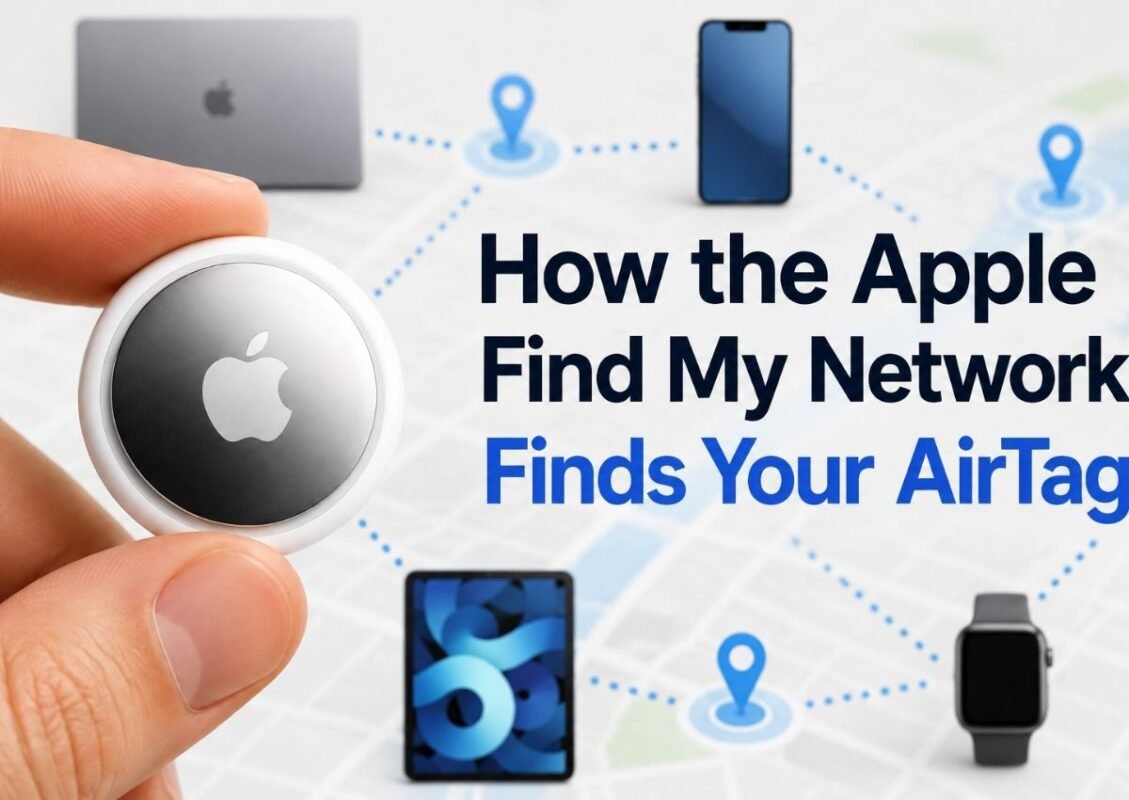
How the Apple Find My Network Finds Your AirTag
The Apple Find My network is what makes an AirTag useful beyond short Bluetooth range. An AirTag does not need its own GPS chip or cellular plan. Instead, it works with a large network of nearby Apple devices, such as iPhones, iPads, and Macs, that can help detect its Bluetooth signal.
Here is the simple idea: your AirTag sends out a secure Bluetooth signal. If another Apple device passes near it, that device can detect the signal in the background. Then it privately sends the AirTag’s approximate location to iCloud. You can then open the Find My app and see where your item was last detected.
This is why AirTags can help with long-distance item finding. The AirTag itself is not sending location from far away. It is being found by other Apple devices in the area. Those devices act like private relays inside the Find My network.
The process is designed to protect privacy. The person carrying the nearby Apple device does not see your AirTag. They do not see your item. They do not see your Apple Account. The location data is handled privately, so the update is meant for the AirTag owner, not the passerby.
Device density matters a lot. In busy places like airports, train stations, shopping centers, offices, and city streets, many Apple devices may pass near your AirTag. That gives the AirTag more chances to be detected and updated in the Find My app.
In quiet or rural areas, updates may be slower. If your AirTag is in a field, on a back road, or inside a building with few Apple devices nearby, it may only show an older “last seen” location. That doesn’t mean your airtag is broken. It usually means no nearby Apple device has detected it recently.
What Happens When a Nearby Apple Device Detects Your AirTag
- Your AirTag sends a signal.
The AirTag quietly broadcasts a secure Bluetooth signal. - A nearby iPhone detects it.
If an Apple device passes close enough, it can notice the AirTag signal in the background. - The location is sent privately.
That device sends the AirTag’s approximate location to iCloud through the Find My network. - You see the update.
The location appears in the owner’s Find My app.
This relay is anonymous. The nearby iPhone owner does not see your AirTag, your item, or your Apple Account.
Why Crowded Places Help AirTags Update Faster
AirTags usually work best in places with many Apple devices nearby. Every nearby iPhone, iPad, or Mac can increase the chance of detecting your AirTag’s Bluetooth signal through the Find My network.
The key factor is network density, not “AirTag power.” An AirTag does not become stronger in a busy place. It simply has more Apple devices around it that may notice its signal and help update the location.
For example, an AirTag inside a suitcase at a busy airport may update more often because many travelers and airport staff carry iPhones. The same AirTag on a quiet rural road may not update for a long time if no Apple device passes nearby.
This is why AirTags often perform well in airports, train stations, shopping centers, cities, and busy hotels. More nearby Apple devices usually means more chances for fresh location updates.
Why Rural Areas or Empty Places May Update More Slowly
AirTags may update slowly in rural areas, empty buildings, parking lots, hiking trails, or quiet roads because fewer Apple devices pass nearby. AirTags update slowly when no nearby Apple device detects them.
In these situations, the Find My app may show an older last seen location instead of a fresh update. That doesn’t mean your airtag is broke. It usually means the Find My network density is low, so the AirTag has not had a recent chance to report its location.
Can Apple or Other People See Your AirTag Location?
Only the owner and approved shared users can see an AirTag’s location in the Find My app. Other people nearby cannot open their iPhone and see your AirTag, your item, or your Apple Account.
When a nearby Apple device detects your AirTag, it works only as a private relay. It can help send encrypted location data through the Apple Find My network, but the person carrying that device does not get access to your information.
Apple also does not show random people where your AirTag is. The AirTag sends the location update to its owner.
For example, if someone’s iPhone helps update your lost suitcase location at an airport, that person will not know it happened.
AirTag 1st Generation vs AirTag 2nd Generation
The basic idea is the same for both AirTag generations: they are Bluetooth item trackers that work with Apple’s Find My network. The main difference is how well they help you find an item nearby.
| Feature | AirTag 1st Generation | AirTag 2nd Generation |
| Tracking method | Uses Bluetooth and the Find My network to update item location. | Uses Bluetooth and the Find My network in the same basic way. |
| Ultra Wideband chip | Uses Apple’s U1 chip for Precision Finding on supported iPhones. | Uses a second-generation Ultra Wideband chip for expanded Precision Finding. |
| Precision Finding | Helps show distance and direction when the AirTag is nearby. | Designed to improve nearby finding with stronger Precision Finding performance. |
| Speaker | Built-in speaker for Play Sound and alerts. | Louder speaker for easier nearby item finding. |
| Best use case | Keys, wallets, bags, and luggage. | Same use cases, with better nearby recovery features. |
The main AirTag advantages and limitations still apply to both versions. Neither one is a live GPS tracker. Both depend on nearby Apple devices for long-distance location updates.
The second generation mainly improves the “finding it nearby” experience.
Apple announced the newer AirTag in January 2026 with expanded Precision Finding, a louder speaker, and updated internal design.
What Changed in the Newer AirTag
- Changed: AirTag 2nd generation has expanded Precision Finding. This can make it easier to find nearby items with distance and direction guidance in the Find My app.
- Changed: The louder speaker makes Play Sound easier to hear when you hide an AirTag in a couch, bag, drawer, or suitcase.
- Changed: The internal design includes newer wireless hardware, which helps improve nearby finding performance.
- Same: It still works through Bluetooth and the Apple Find My network.
- Same: It is still an item tracker, not a live GPS tracker.
- Same: Long-distance updates still depend on nearby Apple devices detecting the AirTag.
- Why it matters: These updates mostly help when your item is close but hard to spot, such as keys under a cushion or luggage in a hotel room.
Precision Finding and Speaker Improvements
Before Precision Finding, you might only see an AirTag’s general map location or use Play Sound to listen for it nearby. With AirTag Ultra Wideband Precision Finding, supported devices can give clearer direction and distance guidance through Find Nearby.
Before, you may have known your keys were somewhere in the room. After that, your iPhone may guide you toward the couch, drawer, bag, or corner where someone hid the AirTag.
The speaker also helps when the item is close but hard to see. A louder sound can make it easier to find a buried wallet or suitcase.
These improvements help with nearby recovery. They do not make long-distance updates faster.
Compatibility Differences to Know
AirTag features depend on your Apple device and software. You need a compatible iPhone or iPad to set up an AirTag, and you need a device with Ultra Wideband support to use Precision Finding.
| Device or Requirement | What It Means |
| iPhone or iPad | Needed to set up and manage an AirTag in the Find My app. |
| Apple Account | Required to link the AirTag to you as the owner. |
| iOS or iPadOS | Your device must run supported software. Newer AirTags may need newer versions. |
| Precision Finding | Works only on supported devices with Ultra Wideband, not every iPhone or Apple Watch. |
| Older iPhones | May still show map location and Play Sound, but may not support Find Nearby. |
For example, an older iPhone may still help you locate a suitcase on a map, but it may not show exact distance and direction. Always check Apple’s current model and software requirements before relying on a specific feature. Apple’s setup page lists different software requirements for the original AirTag and AirTag 2nd generation.
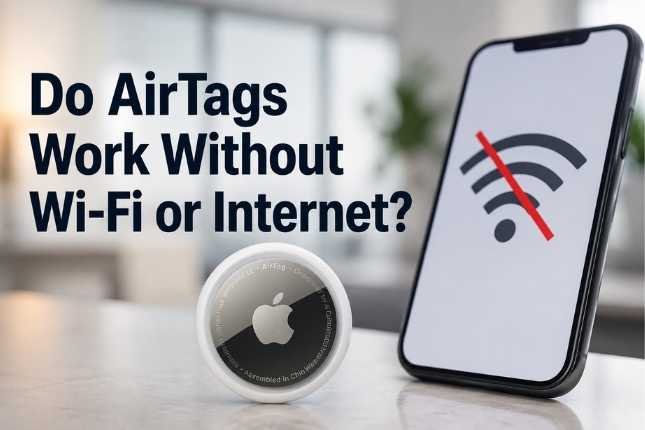
Do AirTags Work Without Wi-Fi or Internet?
Yes, AirTags can work without Wi-Fi because the AirTag itself does not connect to Wi-Fi or cellular internet. It sends out a secure Bluetooth signal instead. That signal can be detected by nearby Apple devices in the Find My network.
But there is an important difference between the AirTag working and you seeing the latest location update.
The AirTag can keep broadcasting its Bluetooth signal on its own. It does not need your home Wi-Fi, airport Wi-Fi, or a mobile data plan to do that. If another iPhone, iPad, or Apple device passes nearby, that device may detect the AirTag and help send its location to iCloud through the Find My network.
Your iPhone, however, does need an internet connection to show fresh updates in the Find My app. If your phone has no Wi-Fi or mobile data, you may only see the last location that was already loaded.
For example, if your suitcase has an AirTag inside it and your phone is offline during a flight, the AirTag can still be detected by Apple devices nearby. You may not see the updated location until your iPhone reconnects to the internet after landing.
So, AirTags do not need Wi-Fi to send a Bluetooth signal. But you need internet on your device to view the newest location in Find My.
Does Your iPhone Need Internet to See Updates?
AirTag can broadcast; your phone needs internet to view updates. The AirTag itself keeps sending its Bluetooth signal, but your iPhone or iPad needs Wi-Fi or mobile data to receive new location updates from iCloud in the Find My app.
If your phone is offline, the AirTag may still be detected by nearby Apple devices. You just may not see that fresh location right away.
In that case, Find My may show a cached or Last Seen location. For example, if your suitcase was detected at an airport 30 minutes ago, that may be the latest location your phone loaded before it lost connection.
Can an AirTag Update Location When Your Phone Is Offline?
Yes, but with a catch. If your phone is offline, the AirTag can still be detected by nearby Apple devices in the Find My network. That is the network update.
You may not see that update until your iPhone reconnects to Wi-Fi or mobile data. That is the viewing update.
For example, if your bag is detected while you are on a flight, the location may appear after you land and your phone reconnects. Until then, Find My may show the last seen location.
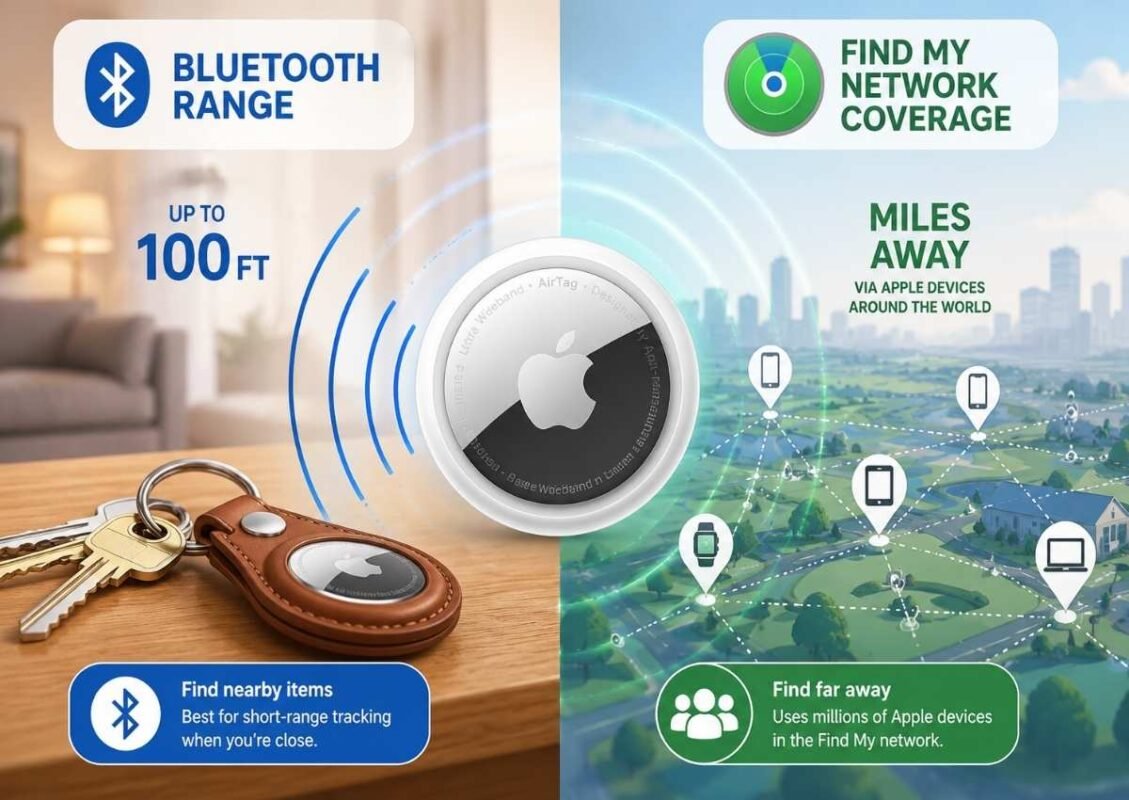
What Is AirTag Range? Bluetooth Range vs FMN Coverage
AirTag range can be confusing because it means two different things. There is Bluetooth range, which helps when the AirTag is nearby. Then there is Find My network coverage, which helps when the AirTag is far away.
An AirTag does not have one fixed range that works the same everywhere. Its performance depends on distance, walls, signal interference, nearby Apple devices, and whether your iPhone can connect to the AirTag directly.
| Type of Range | How It Works | Best Example |
| Bluetooth range | Your iPhone connects directly to the AirTag when it is close enough. This is useful for nearby finding, playing a sound, or using Precision Finding on supported devices. | Your wallet is somewhere in your house, and you use Play Sound or Find Nearby to locate it. |
| Find My network coverage | If the AirTag is far away, it depends on nearby Apple devices to detect its Bluetooth signal and update the location in Find My. | Your suitcase is at an airport, and another iPhone nearby helps update its map location. |
| Out of range with no nearby Apple devices | If your iPhone is too far away and no Apple device passes near the AirTag, the Find My app may only show the last known location. | Your bag is on a quiet rural road, and no Apple device has detected it recently. |
So, how far do AirTags work? For nearby use, the range is limited by Bluetooth and the environment around you. Indoors, walls, floors, bags, and metal objects can reduce the signal. Outdoors, Bluetooth may work better, but it still has limits.
For long-distance tracking, the AirTag is not reaching across miles by itself. It is relying on the Find My network. That means it can update from far away if another Apple device detects it nearby.
The best way to understand AirTag range is this: nearby tracking depends on Bluetooth, while far-away tracking depends on the Find My network. That is why AirTags often work well in busy places and may update slowly in empty areas.
AirTag Bluetooth Range Explained
AirTag Bluetooth range depends on distance, signal strength, and what is between your iPhone and the AirTag. Bluetooth Low Energy helps with nearby finding, but it can be weakened by walls, floors, bags, furniture, metal objects, and other wireless interference.
This is why an AirTag may be easier to find in an open room than inside a packed suitcase or behind thick walls. There is no perfect fixed range for every situation. Nearby tracking works best when there are fewer obstacles between your device and the AirTag.
Find My Network Range Explained
Long-distance tracking depends on the Find My network. An AirTag does not use its own GPS to send location from far away. Instead, it waits for nearby Apple devices to detect its Bluetooth signal.
If an iPhone, iPad, or Mac passes close to your AirTag, that device can help send the item’s location to iCloud. Then you may see the map location in Find My.
So, “coverage” really means people and Apple devices nearby, not the AirTag reaching across miles by itself.
Why There Is No Single Fixed AirTag Range
There is no guaranteed AirTag range because its practical range depends on the situation. Nearby tracking depends on Bluetooth, while far-away tracking depends on the Find My network and nearby Apple devices.
Range can change because of:
- Walls and floors: These can weaken the Bluetooth signal.
- Bags or metal objects: These may block or reduce detection.
- Indoor vs outdoor areas: Open spaces often work better.
- Nearby devices: More Apple devices usually mean better updates.
- Signal interference: Other wireless signals can affect performance.
Factors That Affect AirTag Range and Accuracy
Several real-world factors can affect AirTag location accuracy:
- Walls and floors: They can weaken the Bluetooth signal between your iPhone and the AirTag.
- Metal objects: Metal bags, toolboxes, or car parts can block detection.
- Low battery level: A weak battery may reduce reliable performance.
- Apple-device density: More nearby Apple devices usually means better Find My network updates.
- Rural areas: Fewer Apple devices can mean slower or older location updates.
- Movement: A moving item may update at different points, not continuously.
- Poor signal areas: Garages, basements, and underground spaces may delay updates.
- Old timestamps: “Last Seen” may show where the AirTag was detected earlier, not where it is right now.
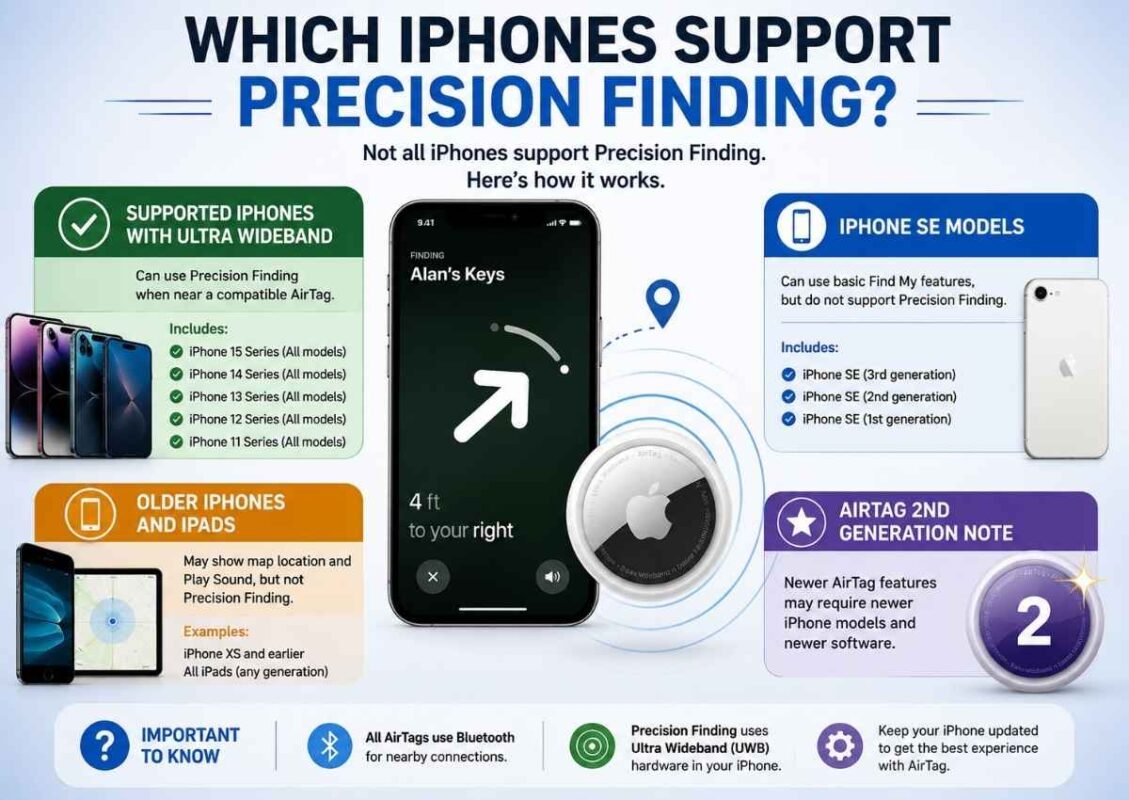
Which iPhones Support Precision Finding?
Precision Finding works only on iPhone models that support Ultra Wideband. Older iPhones can still use the Find My app to show map location and play a sound, but they may not show exact distance and direction.
| iPhone Model Group | Precision Finding Support |
| Supported iPhones with Ultra Wideband | Can use Precision Finding when near a compatible AirTag. |
| iPhone SE models | Can use basic Find My features, but do not support Precision Finding. |
| Older iPhones and iPads | May show map location and Play Sound, but not Precision Finding. |
| AirTag 2nd generation note | Newer AirTag features may require newer iPhone models and newer software. |
For example, an older iPhone may help you find luggage on a map, but it may not guide you with arrows and distance. Always confirm Apple’s current model and software requirements before relying on this feature.
Which Apple Watches Support Precision Finding?
| Apple Watch Model | Precision Finding Support for AirTag |
| Apple Watch models with supported Ultra Wideband hardware | May support Precision Finding for compatible AirTag models when running supported watchOS. |
| Apple Watch SE models | Do not support Precision Finding. They can still use the Find Items app for supported item features. |
| Older Apple Watch models | May show item location, directions, or Play Sound in the Find Items app, but not Precision Finding. |
| Region note | Precision Finding uses Ultra Wideband, so availability may depend on your country, region, Apple Watch model, and software version. |
Apple’s 2026 AirTag announcement says the newer AirTag supports Precision Finding on Apple Watch Series 9 or later and Apple Watch Ultra 2 or later, subject to compatible software and regional availability.
Precision Finding vs Play Sound vs Map Location
| Find My Option | Best For | How It Helps |
| Map Location | Finding a far-away item | Shows the item’s last seen location or latest detected place in Maps. Use it for luggage, bags, or items outside Bluetooth range. |
| Play Sound | Finding something nearby but hidden | Makes the AirTag beep when it is close enough to connect. Best for keys in a couch, drawer, or bag. |
| Precision Finding | Finding the exact nearby spot | Uses Find Nearby on supported devices to show distance and direction. Best when sound alone is not enough. |
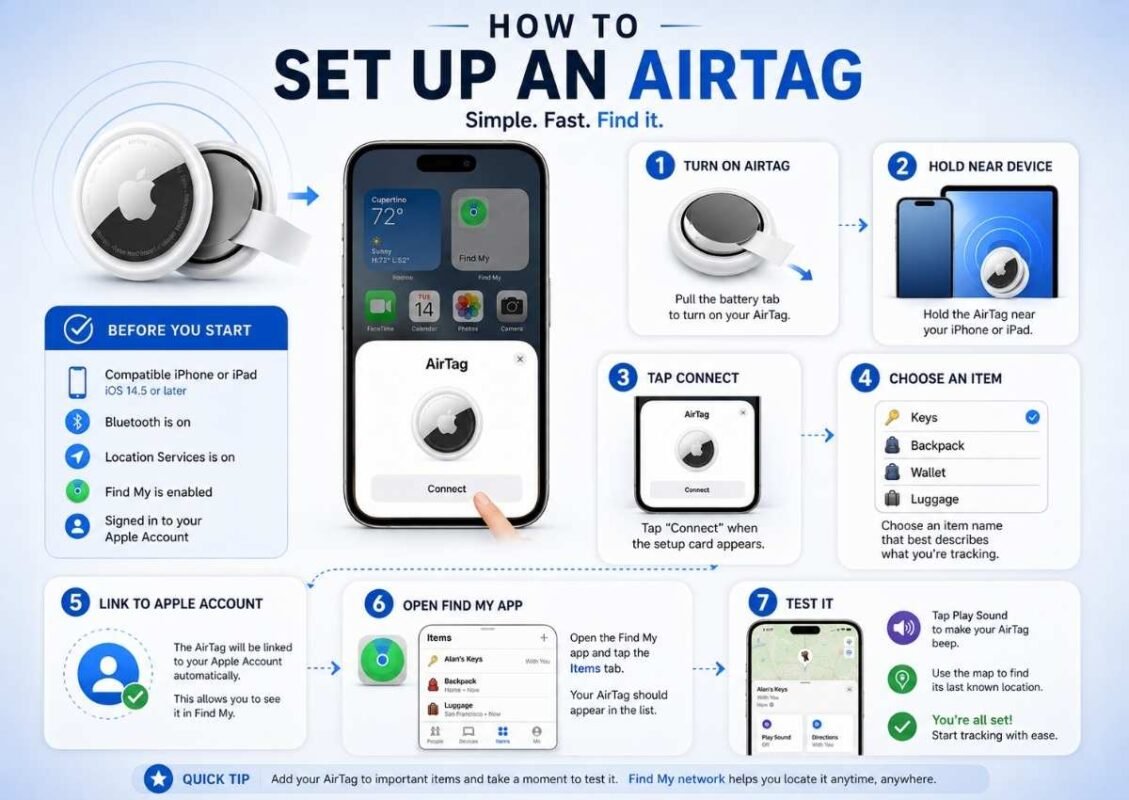
How to Set Up and Pair an AirTag
Setting up an AirTag is simple, but a few settings need to be ready first. Before you start, update your iPhone or iPad, sign in to your Apple Account, turn on Bluetooth, enable Location Services, and make sure Find My is turned on.
- Unwrap the AirTag and pull the battery tab.
You should hear a small sound when the AirTag turns on. - Hold the AirTag near your iPhone or iPad.
Keep it close to your device until the setup card appears on the screen. - Tap “Connect.”
Your device will begin pairing the AirTag with your Apple Account. - Choose a name for the item.
You can select a preset name like Keys, Backpack, Wallet, or Luggage. You can also create a custom name, such as “Blue Suitcase” or “Camera Bag.” - Confirm the AirTag is linked to your Apple Account.
This connects the AirTag to you as the owner and adds it to the Find My app. - Open the Find My app.
Go to the Items tab and make sure your AirTag appears there. - Test it before using it.
Try Play Sound or check its map location to confirm everything works.
For example, if you are setting up an AirTag for luggage, name it clearly before your trip. A name like “Black Checked Suitcase” is much easier to recognize than a generic label.
What You Need Before Setting Up an AirTag
Before pairing, run through this quick AirTag setup checklist:
- Compatible iPhone or iPad: You need a supported Apple device to set up and manage the AirTag.
- Apple Account: The AirTag must be linked to your account as the owner.
- Updated software: Make sure your iPhone or iPad is running a supported iOS or iPadOS version.
- Bluetooth turned on: Your device needs Bluetooth to detect the AirTag.
- Location Services enabled: This helps Find My show item locations.
- Find My app enabled: AirTags are managed through the Items tab.
If setup fails, check settings first. The AirTag itself may not be the problem.
Step-by-Step: How to Connect an AirTag
- Pull the battery tab so the AirTag turns on.
- Hold it near your iPhone until the AirTag setup animation appears.
- Tap Connect.
- Choose an item name, like Keys, Wallet, or Blue Suitcase.
- Confirm the AirTag links to your Apple Account. Ownership is tied to that account.
- Open the Find My app and check the Items tab.
- Use Play Sound once to make sure the AirTag is working before attaching it to your item.
How to Rename an AirTag or Change Its Item Type
To rename an AirTag, use this path:
- Open the Find My app.
- Tap the Items tab.
- Choose the AirTag you want to edit.
- Scroll down and tap Rename Item.
- Pick a new item type, name, or emoji.
- Save the changes.
Clear names help when you have more than one AirTag linked to your Apple Account. For example, “Black Suitcase” is more useful than “Luggage” if you travel with multiple bags.
What to Do If Your AirTag Will Not Pair
If your AirTag will not pair with your iPhone, check the basics before assuming the AirTag is broken.
- AirTag not connecting to iPhone: Make sure Bluetooth is turned on and your iPhone is close to the AirTag.
- Setup screen not appearing: Check that your iPhone is updated and Location Services are enabled.
- AirTag not showing in Find My: Open the Find My app and confirm you are signed in with the correct Apple Account.
- No sound after pulling the tab: Remove and reinsert the battery to make sure it is seated correctly.
- AirTag already linked to someone else: It must be removed from the previous owner’s Apple Account before you can pair it.
- Still not working: Restart your iPhone and try pairing again. If needed, reset the AirTag.
Many pairing problems come from settings, software, battery contact, or account ownership, not the AirTag hardware itself.
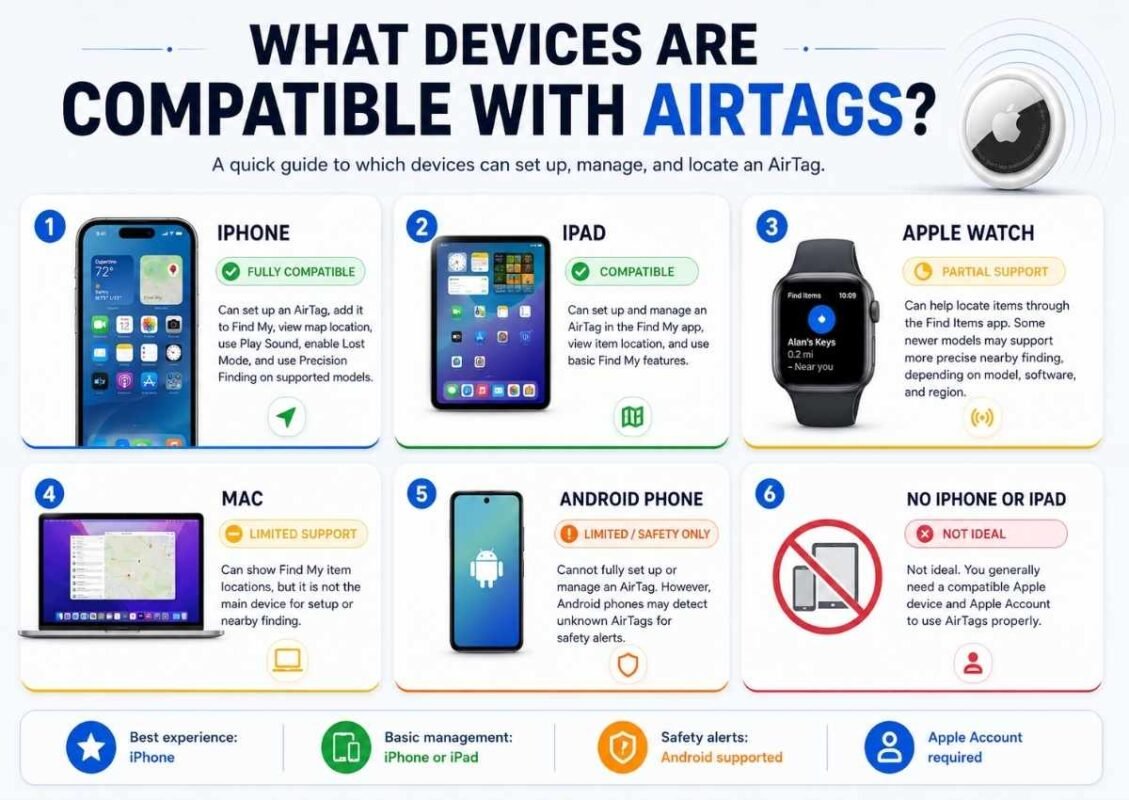
What Devices Are Compatible With AirTags?
AirTags work best inside Apple’s ecosystem. A compatible iPhone or iPad is needed to set up and manage an AirTag in the Find My app. Android phones have limited support, mainly for safety detection.
| Device | What It Can Do With AirTags |
| iPhone | Can set up an AirTag, add it to the Find My app, view map location, use Play Sound, enable Lost Mode, and use Precision Finding on supported models. |
| iPad | Can set up and manage an AirTag in the Find My app, view item location, and use basic Find My features. |
| Apple Watch | Can help locate items through the Find Items app. Some newer models may support more precise nearby finding, depending on model, software, and region. |
| Mac | Can show Find My item locations, but it is not the main device for setting up or nearby finding. |
| Android phone | Cannot fully set up or manage an AirTag. However, Android phones may detect unknown AirTags for safety alerts. |
| No iPhone or iPad | Not ideal. You generally need a compatible Apple device and Apple Account to use AirTags properly. |
The key difference is this: Android may detect an unknown AirTag, but it cannot fully set up and use one like an iPhone can.
iPhone and iPad Requirements
Before you add an AirTag to an iPhone or iPad, check these basics:
- Compatible device: Use a supported iPhone or iPad model.
- Updated software: Your device needs a supported iOS or iPadOS version.
- Apple Account: You must be signed in so the AirTag can link to your account.
- Find My enabled: AirTags are managed through the Find My app.
- Bluetooth and Location Services: Both should be turned on.
Software requirements can change, so check Apple’s current requirements for your device model.
Do AirTags Work With Android?
No, AirTags do not fully work with Android. An Android phone cannot set up, manage, or track an AirTag through Apple’s Find My network. AirTags are built for Apple devices. Android users may still receive unknown tracker alerts if an AirTag is moving with them. For Android users, Samsung SmartTag or Tile is usually a better alternative for item tracking.
Can You Use AirTags Without an iPhone?
Only in a limited way. You generally need a compatible iPhone or iPad to set up, manage, and view an AirTag in the Find My app. Nearby Apple devices can still act as relays and help update location, but they are not your owner device. Without your own Apple device and Apple Account, AirTags are not practical daily.
Can You Share an AirTag With Family or Another Phone?
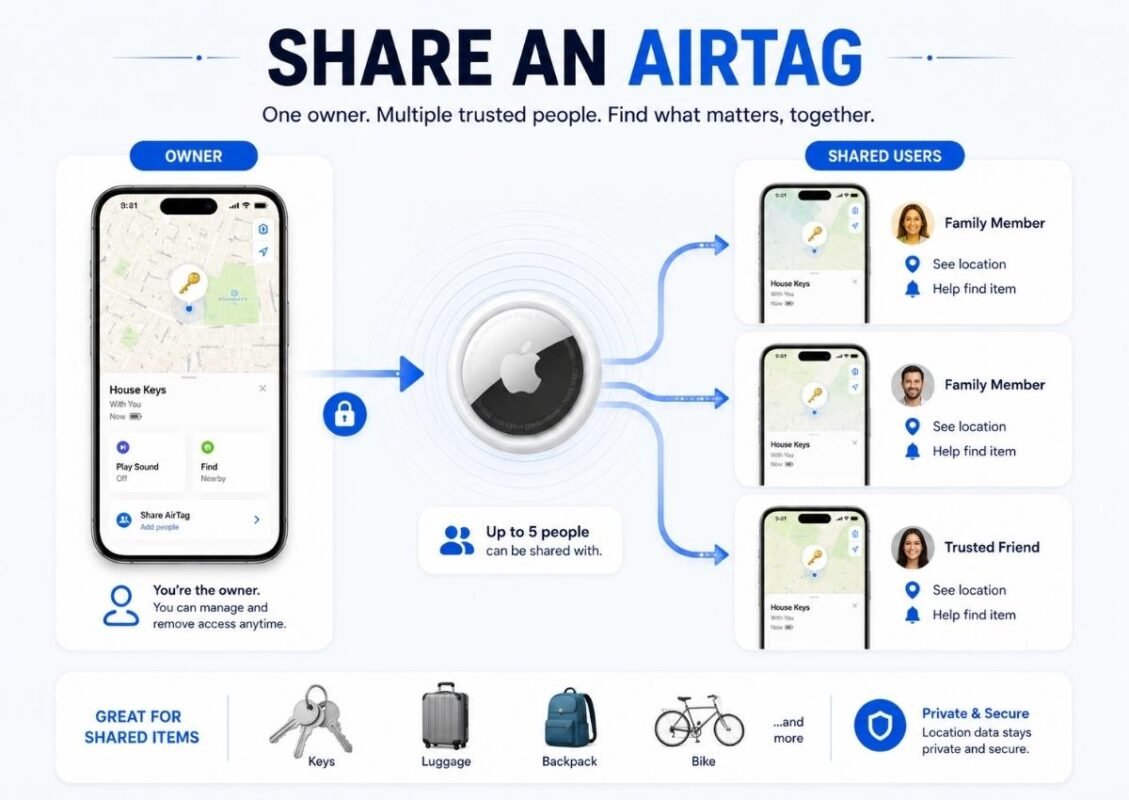
Yes, you can share an AirTag with family members or another trusted Apple user through the Find My app. The AirTag still has one owner, but shared users can see its location and help find it.
This is useful for shared items like house keys, car keys, luggage, camera bags, or a family backpack. For example, if two people use the same suitcase on a trip, sharing the AirTag lets both people check its location.
Shared users are not the same as co-owners. The AirTag remains linked to the original owner’s Apple Account. Apple allows sharing with up to five other people, for six users total.
How AirTag Sharing Works
AirTag sharing is managed in the Find My app. Open the Items tab, choose the AirTag, then use Share AirTag to invite a trusted person with an Apple Account.
The owner can add or remove shared users, keep control of the AirTag, and manage its settings. A shared user can see the item’s location, use Find My features, and help locate the item when needed.
For example, if you share an AirTag on family car keys, both people can check where the keys were last seen. Sharing gives access, but it does not automatically transfer ownership to another Apple Account.
How Many People Can Share One AirTag?
Up to five other people can share one AirTag at a time, in addition to the owner. That means six people total can access the shared item in the Find My app.
Shared users can see the AirTag’s location, use Precision Finding where supported, and play a sound. The AirTag still belongs to the original owner’s Apple Account.
Why Shared Users May Stop Receiving Tracking Alerts
When you share an AirTag with a family member or trusted person, their phone may stop treating it as an unknown tracker. That helps prevent unnecessary unwanted tracking alerts for shared keys, bags, or luggage.
Sharing should be intentional. Only share with someone who knows the AirTag is connected to the item, and remove access when sharing is no longer needed.
Can One AirTag Be Linked to Two Apple Accounts?
“Linked” means an AirTag is owned by one Apple Account in the Find My app. “Shared” means trusted people can access it without becoming the owner.
One AirTag cannot have two true owners at once. If you transfer it, the owner should remove it from Find My first. Then the new person can reset and pair it with their own Apple Account.
Do AirTags Work Internationally?
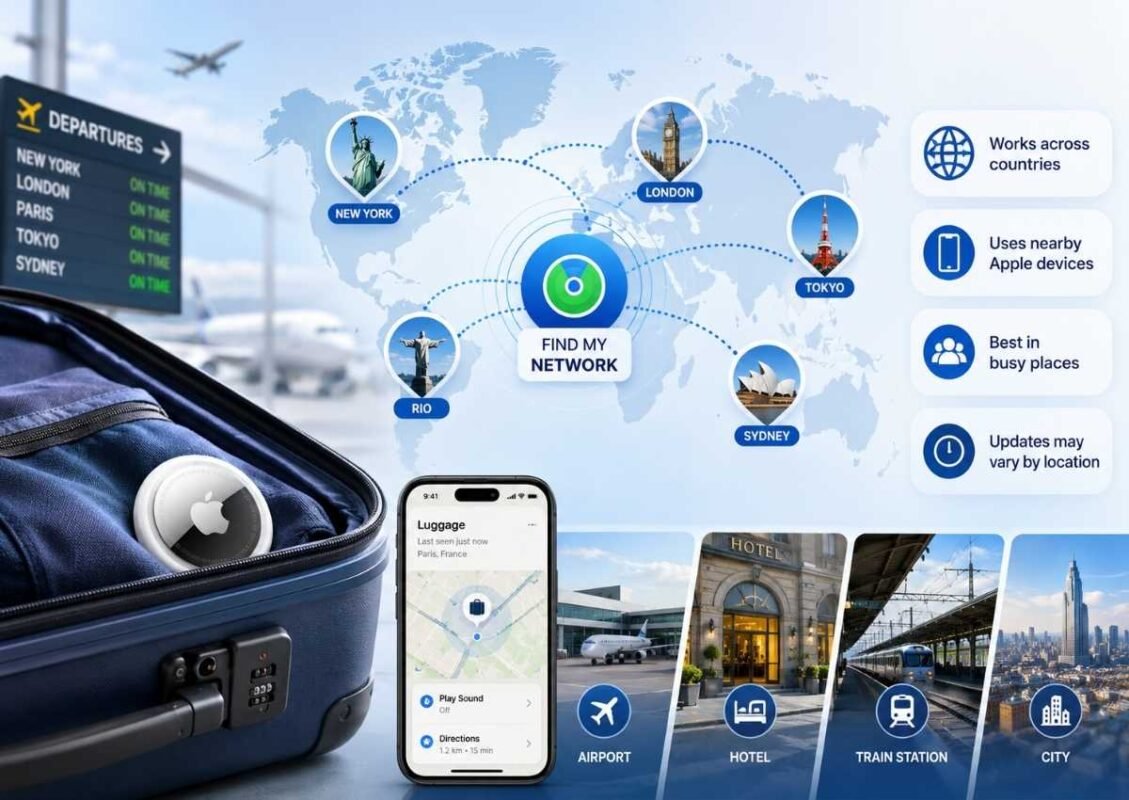
Yes, AirTags can work internationally, but they do not work everywhere in the same way. They work where the Find My network can detect them. That means an AirTag can update its location in another country if nearby Apple devices detect its Bluetooth signal and relay the location through the Find My network.
For example, if you travel from the USA to the UK, Canada, or Australia with an AirTag in your suitcase, it may update when iPhones or other Apple devices pass near your bag at the airport, hotel, train station, or baggage area.
This is how AirTags work long distance. The AirTag is not sending a signal across countries by itself. It depends on nearby Apple devices in that place.
Performance can vary by location. Busy airports and cities usually give more update chances. Rural areas, storage rooms, underground spaces, or low-traffic places may update more slowly.
Some features can also vary. Precision Finding depends on supported devices and Ultra Wideband availability, which is not available in all countries or regions. Find Nearby, Play Sound, Lost Mode, and map updates may also depend on device support, software version, internet connection, and whether the AirTag is close enough to detect.
Do AirTags Work the Same in the USA, UK, and Canada?
Yes, AirTags generally work the same way in the USA, UK, and Canada. The core system is still Bluetooth plus the Find My network.
Real-world update speed depends on nearby Apple devices, especially in airports, cities, and rural areas. Some features, such as Precision Finding with Ultra Wideband, may depend on device support, software version, and local availability.
What Can Affect AirTag Tracking While Traveling Abroad?
Several things can affect AirTag tracking while traveling abroad:
- Apple-device density: More nearby iPhones, iPads, and Macs mean more chances for the AirTag to update through the Find My network.
- Phone connectivity: If your iPhone has no roaming, Wi-Fi, or mobile data, you may not see fresh updates right away.
- Airport handling: Bags may move through restricted areas where fewer Apple devices are nearby, so updates can be delayed.
- Remote locations: Rural roads, small stations, or quiet hotels may have slower updates.
- Region limits: Some features, like Ultra Wideband Precision Finding, may vary by country.
- Signal blockers: Metal luggage frames, thick walls, basements, and storage rooms can weaken detection.
Region Limits for Precision Finding and UWB
Ultra Wideband is controlled by device hardware, software, and local wireless rules, so Precision Finding may not work in every region or on every Apple device. A compatible iPhone or Apple Watch is still required, and some countries may limit UWB features.
If Precision Finding is unavailable, use the map location, Directions, Play Sound, or Lost Mode instead. For example, your AirTag may show on the map while Find Nearby is missing.
Before relying on UWB during travel, check Apple’s current regional and device requirements.
Travel Situations Where AirTags Work Best
Best in: airports, hotels, train stations, busy cities, and checked luggage areas where many Apple devices pass nearby.
Weaker in: remote roads, quiet rural areas, storage rooms, or places with few iPhone users.
AirTags are best for location confirmation, not live movement tracking.
How AirTags Work for Luggage and Airports
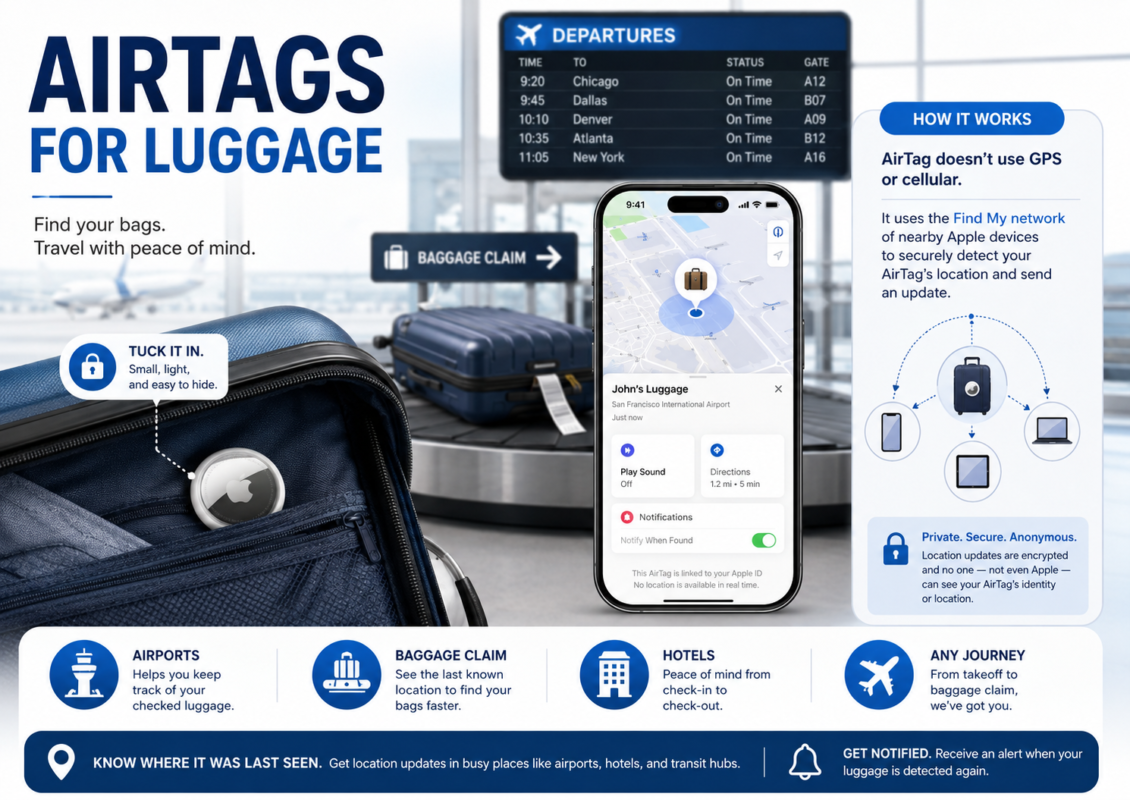
AirTags work well for checked luggage because airports have many Apple devices that can help update location through the Find My network. They cannot show live baggage movement.
Place the AirTag inside your suitcase, check the battery before travel, and use Share Item Location if your airline supports it.
Do AirTags Work in Airplane Mode?
Yes, but it depends on what you mean. Airplane mode affects your phone’s internet connection, not the AirTag’s Bluetooth broadcast.
The AirTag can still be detected by nearby Apple devices. You may not see the location update in the Find My app until your iPhone reconnects after landing.
How to Use Share Item Location With Airlines
If your checked bag is missing, you can use Share Item Location to create a temporary link from the Find My app and share it with the airline.
- Open the Find My app on your iPhone.
- Tap the Items tab.
- Select the AirTag inside your lost luggage.
- Choose Share Item Location.
- Create the temporary location link.
- Send that link to the airline through its lost baggage form, support chat, email, or baggage desk.
- Stop sharing when your bag is returned, or let the link expire automatically.
This is different from giving someone full access to your AirTag. The airline gets a temporary view of the item’s location, not your Apple Account or personal Find My details. It is useful when your bag is delayed, sent to the wrong airport, or waiting in a baggage area.
What Can and Can’t You Track With an AirTag?
AirTags are best for finding personal items, not for live tracking people, pets, or vehicles. They work well when the item may be misplaced, left behind, or moved through places with many Apple devices nearby.
| Use Case | Good Fit? | Why |
| Keys, wallets, purses, and backpacks | Best for | These are common personal items that are easy to lose at home, work, school, or in public places. You can use Find My, Play Sound, or Find Nearby when supported. |
| Luggage and travel bags | Best for | AirTags are helpful for checked luggage because airports often have many Apple devices nearby. They can show where your bag was last detected. |
| Camera bags or gear bags | Best for | Useful for expensive personal belongings, especially when traveling or working in busy places. |
| Cars | Limited for | An AirTag may help show where a car was last detected, but it is not a live vehicle tracker. A GPS tracker is better for real-time vehicle tracking. |
| Pets | Limited for | AirTags may update if a pet is near Apple devices, but they are not true pet GPS trackers. A pet in a rural area may not update quickly. |
| Children or people | Not designed for | AirTags are not made to track people. They do not provide live safety tracking and include unwanted tracking alerts for privacy. |
| Stolen items | Limited for | An AirTag may help show a last known location, but it is not a theft recovery tool. Avoid confronting anyone and contact authorities if needed. |
In short, AirTags are great for personal belongings. They are limited when you need live movement, route history, geofencing, or guaranteed updates. For those cases, a dedicated GPS tracker is usually the better choice.
Can You Use an AirTag to Track a Car?
Yes, you can use an AirTag to help locate a parked car or an item left inside a car. But it is possible, not designed for real-time car tracking.
An AirTag depends on Bluetooth and the Find My network, not live GPS. For stolen item recovery, avoid confrontation. Follow local privacy laws and contact authorities if safety or theft is involved.
Are AirTags Good for Dogs and Cats?
AirTags are not ideal because they are Bluetooth trackers, not true pet GPS trackers. They can help if your dog or cat is near Apple devices in the Find My network, but they do not provide live tracking.
Use a safe collar attachment and choose a purpose-built pet GPS tracker for rural areas, escape risks, or constant location updates.
Can an AirTag Track a Child?
An AirTag can be placed in a child’s backpack or school bag, but it should not be used as a live child tracker. AirTags are designed for finding items, not tracking people in real time. They depend on nearby Apple devices, so location updates may be delayed or missing in quiet areas.
For child safety, privacy and consent matter. AirTags also include unwanted tracking alerts, which are meant to discourage hidden tracking of people. If you need reliable family safety features, live location sharing, emergency alerts, or route history, a purpose-built GPS tracker or family safety app is usually a better option.
Use an AirTag to find belongings, not to replace proper child safety tools.
Can AirTags Help With Stolen Items?
AirTags may help with stolen items, but they are not theft recovery devices. They can show a last seen location or an updated location in the Find My app if nearby Apple devices detect the AirTag. That can sometimes help you understand where a stolen bag, wallet, or suitcase may have gone.
For example, if a stolen backpack is detected near an apartment building, the Find My app may show that location. But the location may not be exact, and the item may move again.
Do not confront anyone based on an AirTag location. If you believe something was stolen, save the details and contact local law enforcement. AirTags can provide clues, not guaranteed recovery.
When You Should Use a GPS Tracker Instead
Use GPS when you need live location, route history, geofencing, or tracking in remote areas. GPS trackers are better for vehicles, pets, and child safety tools.
The tradeoff is that many GPS tracker devices need charging, cellular tracking, and a monthly subscription.
AirTag Privacy: What Data Is Shared and What Stays Private?
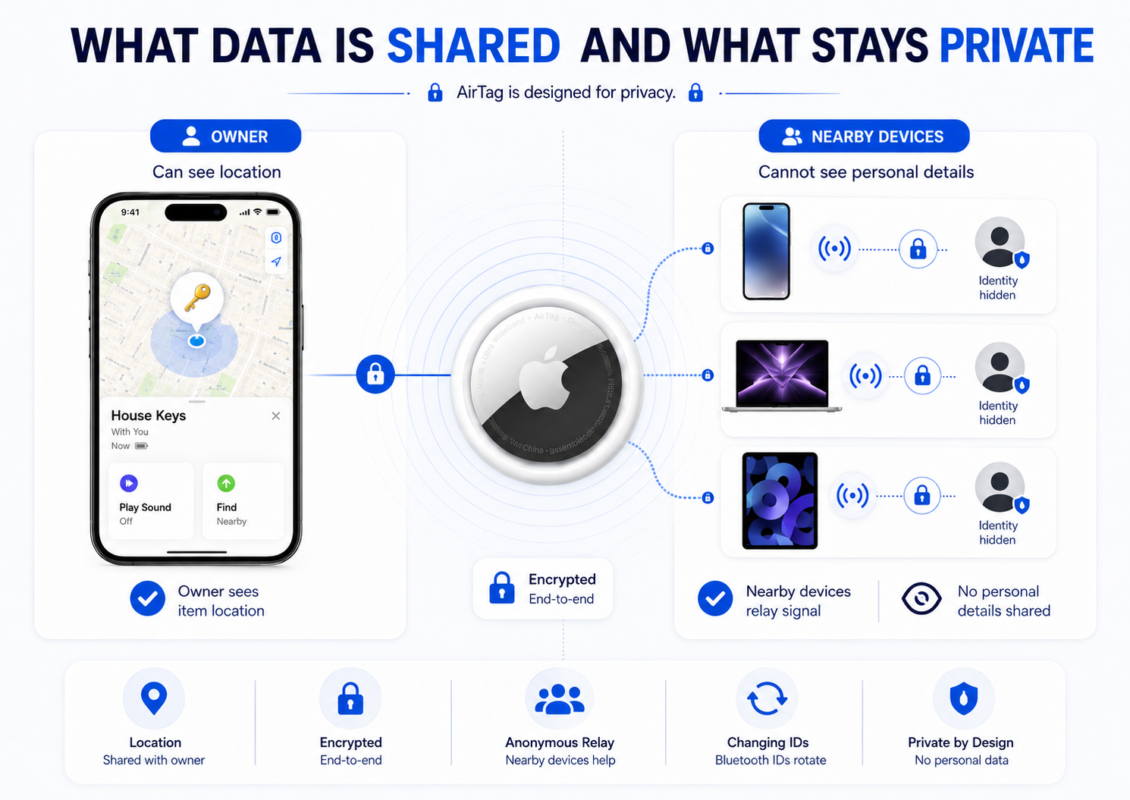
AirTags are built to help you find your own items, but they also use privacy protections so the Find My network does not expose unnecessary personal information. The key idea is simple: your AirTag location is meant for you, not for random people nearby.
Owner sees: The AirTag owner can see the item’s location in the Find My app. If the AirTag is shared with trusted users, those shared users may also see its location. The owner may see a map location, a last seen time, directions, and nearby finding options when supported.
Apple does not show: Apple does not show the AirTag owner the identity of the nearby Apple device that helped update the location. The Find My network uses encrypted location data, so the relay process is designed to stay private. Apple also does not give you a list of people or devices that passed near your AirTag.
Passersby do not see: If someone’s iPhone detects your AirTag in the background, that person does not see your item, your Apple Account, or your AirTag location. Their device only acts as a private relay through the Apple Find My network.
For example, if your suitcase is detected at an airport by another traveler’s iPhone, that traveler will not get a notification saying they found your bag. They will not see your name or your location. You may simply see an updated location in your Find My app.
AirTags also use Bluetooth identifiers that change over time. This helps reduce the chance of someone using the signal itself to follow the AirTag. In short, the owner can find the item, but nearby people are not shown private details.
Does an AirTag Store Location History?
No, the AirTag itself does not store a full location history. It is not keeping a travel log inside the device.
In the Find My app, you may see the item’s current or last known location, plus a time such as Last Seen. That means the AirTag was detected at that place and time. It does not mean someone else can see your AirTag location or your Apple Account.
Who Can See an AirTag’s Location?
Only the AirTag owner and approved shared users can see its location in the Find My app.
Random nearby Apple devices may help relay the location privately, but their owners do not see your AirTag, your item, or your Apple Account. This access control keeps AirTag location sharing private.
How Apple Protects Find My Network Privacy
Apple protects Find My network privacy through encryption and anonymous reporting. Encryption means the location data is protected so random people cannot read it. Anonymous reporting means the nearby Apple device that detects your AirTag does not reveal its owner to you.
AirTags also use changing Bluetooth identifiers. This means the Bluetooth signal does not keep the same public ID all the time. For example, if someone’s iPhone helps update your bag’s location, that person stays anonymous, and you only see the item’s location in Find My.
What AirTag Owners Can and Cannot See
| Can see | Cannot see |
| Item location in Find My for owner and shared users | Passerby identity, personal data, or which nearby Apple devices relayed the signal |
AirTag Safety and Unwanted Tracking Alerts
AirTags include unwanted tracking protection to help prevent someone from using them to secretly follow another person. If an unknown AirTag appears to be moving with you over time, your phone may show an unknown tracker notification in the Find My app. The AirTag may also make a sound to help you notice and locate it.
Meaning: An alert does not always mean danger. It could happen if you borrowed someone’s bag, shared car keys, or traveled with luggage that has another person’s AirTag inside. But it should still be checked.
Action: Open the alert, review the details, and use the available options. You may be able to play a sound, use Find Nearby on supported devices, or see where the AirTag was first detected with you. Android users may also receive unknown tracker alerts if a compatible phone detects an AirTag moving with them.
Safety note: If you find an unknown AirTag and feel unsafe, do not ignore it. Move to a safe place, save any details shown on your phone, and contact local authorities if needed. You can also disable the AirTag by removing its battery.
Apple’s safety guidance explains that users can tap an unwanted tracking notification, continue, then play a sound or use Find Nearby if available.
What Does “AirTag Found Moving With You” Mean?
This alert means an unknown AirTag appears to be traveling with you while separated from its owner. It can appear in the Find My app as a safety notification.
It does not always mean the owner is watching every move in real time, but you should still check the alert and locate the AirTag.
Why an AirTag May Start Beeping
An AirTag may beep for several reasons. Possible reasons include the owner using Play Sound, the AirTag being separated from its owner, unwanted tracking protection, setup sounds, or battery-related alerts.
A normal owner-triggered sound helps find a nearby item. A safety beep may happeOpen the alert options on your phone.
Tap Play Sound to listen for the AirTag speaker.
Use Find Nearby if your iPhone supports it.
Check pockets, bags, car seats, luggage, and hidden compartments.
If you feel unsafe, do not confront anyone directly. Contact authorities.n when an unknown or separated AirTag is moving with someone over time.
What to Do If You Get an Unknown AirTag Alert
- Open the Find My alert and review the details.
- Check the map to see where it was detected with you.
- Tap Play Sound or use Find Nearby if available.
- Check bags, pockets, clothing, luggage, and your car.
- Save details if needed.
- Contact authorities if you feel unsafe.
How to Find an Unknown AirTag Near You
- Open the alert options on your phone.
- Tap Play Sound to listen for the AirTag speaker.
- Use Find Nearby if your iPhone supports it.
- Check pockets, bags, car seats, luggage, and hidden compartments.
- If you feel unsafe, do not confront anyone directly. Contact authorities.
How to Disable an AirTag That Is Tracking You
- Move to a safe place first.
- Save the AirTag serial number if shown.
- Press and twist the battery cover open.
- Remove the CR2032 battery.
- Contact law enforcement if you feel at risk or believe the AirTag was placed without consent.
AirTag Battery Life, Battery Type, and Replacement
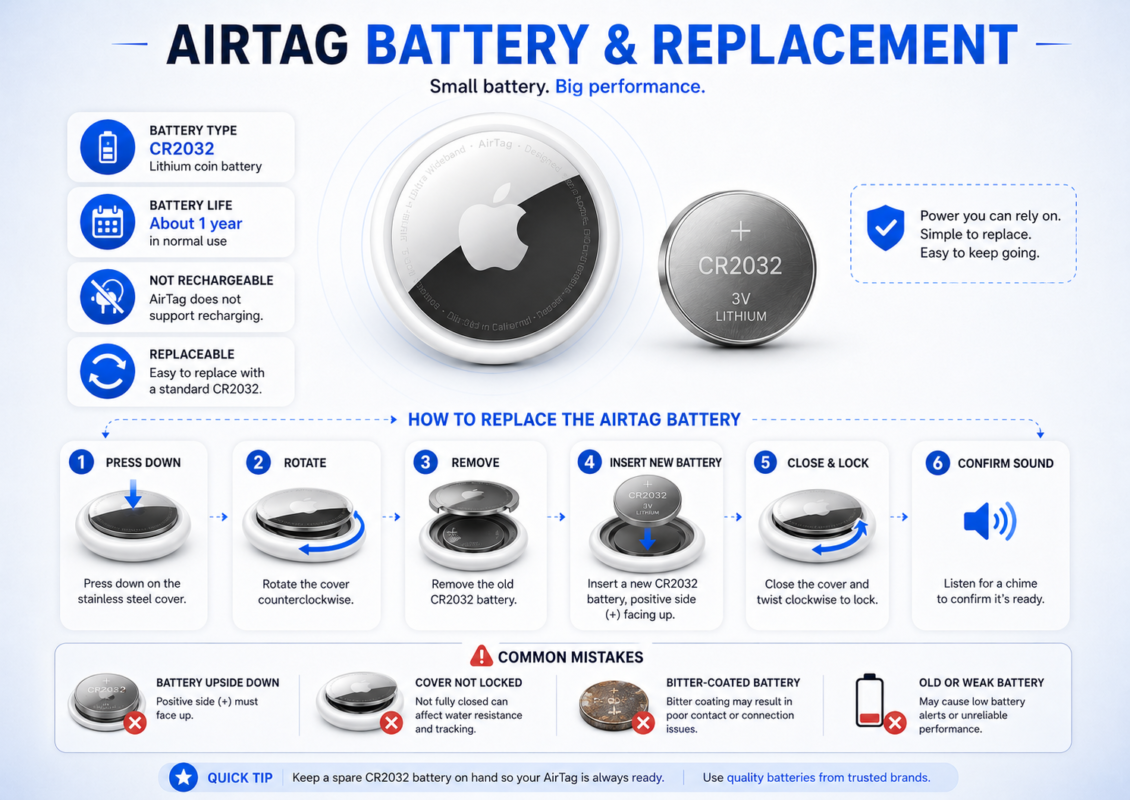
AirTags use a replaceable CR2032 lithium coin battery, not a rechargeable battery. In normal use, the battery is designed to last about a year, but battery life can vary based on sound use, Precision Finding, temperature, and how often the AirTag is used.
You can check battery status in the Find My app. If the battery is low, you may see a low battery notification or notice weaker performance, such as delayed updates or trouble playing a sound.
To replace the battery:
- Press down on the metal battery cover.
- Rotate it counterclockwise.
- Remove the old CR2032 battery.
- Insert the new battery with the positive side facing up.
- Close the cover and listen for the confirmation sound.
Common mistakes include using the wrong battery side, not closing the battery cover fully, or using a battery with a coating that prevents proper contact. Some bitter-coated CR2032 batteries may not work well if the coating blocks the AirTag’s contacts.
If your AirTag still does not respond after replacement, try reseating the battery before assuming the device is broken. Apple’s AirTag tech specs list a CR2032 coin cell battery, and Apple’s battery guide explains the replacement process.
How Long Does an AirTag Battery Last?
An AirTag battery usually lasts about one year with normal use. It uses a replaceable CR2032 battery, so you do not need to charge the AirTag.
Battery life can vary. If you use Play Sound often, rely on nearby finding a lot, or keep the AirTag in very hot or cold conditions, the battery may drain faster. Travel use, frequent location checks, and weak signal areas can also affect performance.
The Find My app can show a low battery warning when it is time to replace it. Do not expect every AirTag to last the exact same amount of time.
What Battery Does an AirTag Use?
AirTags use a user-replaceable CR2032 lithium 3V coin battery. You can buy this common replacement battery at many electronics stores, pharmacies, or supermarkets.
When replacing it, place the positive side facing up before closing the battery cover.
How to Replace an AirTag Battery
- Press down on the stainless steel battery cover.
- Rotate it counterclockwise.
- Remove the cover and old CR2032 battery.
- Insert the new battery with the positive side up.
- Close the cover.
- Listen for the confirmation sound.
Are AirTags Rechargeable?
No, AirTags are not rechargeable. They use a replaceable CR2032 lithium coin battery instead.
This can be convenient because you do not need to charge the AirTag or carry a cable. When the battery runs low, open the battery cover and replace it.
How to Know When Your AirTag Battery Is Low
Use this quick checklist:
- Check the Find My app.
- Open the Items tab.
- Select your AirTag.
- Look for a low battery notification or battery warning.
- Replace it with a CR2032 battery if needed.
A low battery can cause issues, but it is only one reason an AirTag may not update.
Common Battery Replacement Mistakes
| Mistake | Fix |
| Battery inserted upside down | Place the positive side up |
| Loose battery cover | Twist until it locks. |
| Poor battery contact | Reseat the CR2032 battery. |
| Bitter coating blocks contact | Try an uncoated battery. |
| Old replacement battery | Use a fresh CR2032. |
Is an AirTag Waterproof, Durable, and Safe for Outdoor Use?
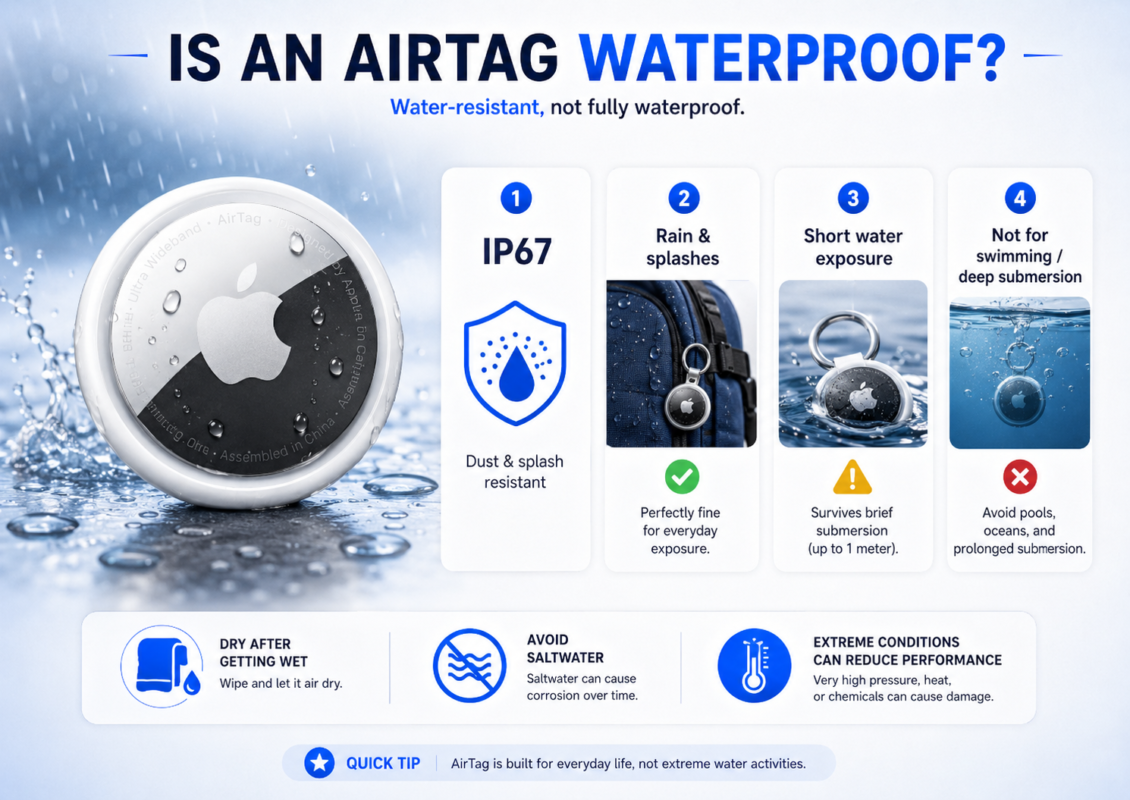
AirTags are water-resistant, not fully waterproof. They can handle everyday exposure, but they are not made for unlimited water, rough impact, or extreme outdoor conditions.
| Condition | What to Know | Caution |
| Rain or light splashes | An AirTag can usually handle normal rain, wet hands, or light splashes. | Do not treat it like a waterproof device. Dry it if it gets wet. |
| Dust and dirt | The AirTag has an IP67 water and dust resistance rating, which helps protect it from everyday dust exposure. | Dirt, sand, and wear can still affect the outer surface over time. |
| Short water exposure | IP67 means it has some protection against water under controlled conditions. | Avoid long submersion, swimming, washing machines, or saltwater exposure. |
| Snow or cold weather | An AirTag can work outdoors in normal cold conditions. | Very cold temperatures may affect battery performance. |
| Hot cars or direct sun | AirTags have operating temperature limits like other small electronics. | Avoid leaving one in extreme heat for long periods. |
| Scratches and wear | The metal side can get scratched from keys, bags, and daily use. | Use a holder or case if appearance matters. |
For outdoor use, keep the AirTag protected inside a bag, luggage pocket, or secure holder. It is durable enough for normal daily use, but it should not be treated like rugged outdoor gear. Apple’s tech specs list IP67 splash, water, and dust resistance under controlled conditions, along with an operating temperature of -4° to 140°F / -20° to 60°C.
AirTag Water and Dust Resistance IP67 Explained
IP67 means an AirTag has tested protection against dust and short water exposure under controlled conditions. It can get wet, but it is not fully waterproof.
Water resistance can also weaken over time with scratches, drops, or normal wear.
AirTag Operating Temperature Limits
| Condition | Official Limit / Effect |
| Operating temperature | -4° to 140°F / -20° to 60°C |
| Hot car | Heat may affect battery performance. |
| Winter weather | Cold can reduce battery strength. |
| Luggage outdoors | Keep AirTag protected from extreme heat or cold when possible. |
Can AirTags Get Scratched or Damaged?
Yes, AirTags can get scratched, especially on the stainless steel cover when attached to keys or tossed in bags. The plastic shell can also show wear over time.
A holder or case can reduce cosmetic damage, but normal scratches usually do not mean the AirTag has stopped working.
Why Your AirTag Location Is Not Updating
If your AirTag is not updating location, start with the normal reasons first. It does not always mean the AirTag is broken.
- Symptom: AirTag says “Last Seen”
Fix: Check the timestamp. This means the Find My app is showing the last place your AirTag was detected, not always its live location. - Symptom: Location is not refreshing
Fix: Wait for a nearby Apple device to detect the AirTag. If no iPhone, iPad, or Mac passes close by, the location may stay old. - Symptom: Updates are delayed in rural or quiet areas
Fix: Understand that Find My network coverage depends on nearby Apple devices. Empty places update more slowly. - Symptom: AirTag works poorly indoors
Fix: Walls, floors, metal objects, basements, and parking garages can weaken Bluetooth signals. - Symptom: AirTag stops responding
Fix: Check the battery in the Find My app and replace the CR2032 battery if needed. - Symptom: AirTag is missing from Find My
Fix: Check Bluetooth, Location Services, your Apple Account, and whether the AirTag is still paired correctly.
Most AirTag update problems come from signal, battery, settings, or nearby device availability.
Why Play Sound or Precision Finding Is Not Working
If Play Sound or Precision Finding is not working, the issue may be with distance, compatibility, settings, or the environment.
| Issue | Why It Happens | What to Try |
| Play Sound does not work | The AirTag may be too far away or not connected through Bluetooth. | Move closer and try again in the Find My app. |
| Find Nearby does not appear | Your device may not support Ultra Wideband, or the AirTag may not be close enough. | Check device compatibility and move closer. |
| Precision Finding is unavailable | Region, software, or hardware limits may apply. | Update your device and check Apple’s feature availability. |
| Sound is hard to hear | The AirTag may be buried in a bag, couch, drawer, or luggage. | Move around the area and listen from different angles. |
| Feature works sometimes | Walls, metal, low battery, or signal interference may affect performance. | Check battery and reduce obstacles when possible. |
Map location and nearby finding are not the same thing. Your AirTag may still appear on a map even when Play Sound or Precision Finding is not available.
Where to Place an AirTag for Better Tracking
Where you place an AirTag can affect how well it updates. Keep it secure, protected, and away from heavy metal when possible.
- Luggage: Place it inside a suitcase pocket, not hanging outside where it can fall off.
- Backpack: Use an inner pocket so it stays hidden and protected.
- Wallet: Use a wallet holder or slim insert if the wallet has space.
- Keys: Attach it to a strong key ring or AirTag holder.
- Bike: Hide it in a secure spot, but avoid areas fully surrounded by metal.
For better tracking, avoid loose exterior attachment and metal shielding. A blocked Bluetooth signal can make the AirTag harder to detect, especially indoors or in crowded bags.
How to Avoid Weak Signal Areas
- Metal objects: Can block Bluetooth. Keep the AirTag away from heavy metal when possible.
- Thick walls: May weaken nearby finding. Move around and try again.
- Underground areas: Parking garages and basements may delay updates.
- Rural areas: Fewer Apple devices means slower Find My updates.
A weak signal does not always mean the AirTag is broken.
Common Mistakes People Make With AirTags
| Mistake | Why It Matters | Better Approach |
| Expecting live GPS | AirTags do not update continuously. | Use GPS for live tracking. |
| Poor luggage placement | External tags can fall off. | Place the AirTag inside the bag. |
| Ignoring battery | Low battery can affect updates. | Check Find My before travel. |
| Unclear names | Multiple AirTags get confusing. | Use names like “Black Suitcase.” |
| Not using Lost Mode | Finders cannot contact you. | Enable Lost Mode when needed. |
FAQ: How AirTags Work
How accurate is an AirTag?
An AirTag’s accuracy depends on how it is being found. Nearby, Precision Finding can guide you with distance and direction. Far away, accuracy depends on the Find My network and nearby Apple devices. A busy airport may update better than a quiet home or rural area.
Can AirTags work without an iPhone?
AirTags generally need a compatible iPhone or iPad for setup, management, and tracking in the Find My app. Android phones cannot fully set up or manage AirTags, though they may detect unknown trackers for safety. Without an Apple Account and Apple device, use is very limited.
Can someone else see my AirTag location?
No, someone else cannot see your AirTag location unless you share the AirTag with them in the Find My app. Only the owner and approved shared users can view it. Nearby Apple devices may help update location privately, but their owners do not see your item.
Can AirTags be used to track stolen items?
AirTags may help track stolen items if the item is detected through the Find My network, but recovery is not guaranteed. You may see a last known or updated location. Do not confront anyone yourself. Save the details and contact local law enforcement.
Why does my AirTag say Last Seen?
Your AirTag says Last Seen when the Find My app is showing the last time and place the AirTag was detected. It may not be the item’s live location. This usually happens when no nearby Apple device has detected the AirTag recently.
Do AirTags make sound automatically?
Yes, AirTags can make sound automatically in some safety situations, especially if an unknown AirTag is separated from its owner and moving with someone. You can also manually use Play Sound in the Find My app to locate your own AirTag nearby.
Can you share an AirTag with family?
Yes, you can share an AirTag with family through the Find My app where supported. The owner can add trusted people, and shared users can help see and find the item. Apple says one AirTag can be shared with up to five other people.
How many AirTags can you register?
Apple says you can add up to 32 items in Find My, including AirTags, shared items, compatible accessories, and AirPods shown in the Devices tab. This limit is tied to your Apple Account and Find My item list, so check Apple’s current setup page before publishing.
Are AirTags magnetic?
AirTags are not meant to attach magnetically on their own. To connect one to keys, bags, luggage, or a bike, you usually need an AirTag holder, key ring, loop, case, or magnetic accessory. The magnet is normally part of the accessory, not the AirTag itself.
When did AirTags come out?
Apple introduced the original AirTag on April 20, 2021, with availability beginning April 30, 2021. Apple introduced the newer AirTag in January 2026 with expanded range and improved findability.
Key Takeaways: How AirTags Work
AirTags work by using Bluetooth and the Find My network to help locate personal items like keys, wallets, backpacks, and luggage. They do not use built-in GPS for live tracking.
Here are the main points to remember:
- AirTags send a Bluetooth signal that nearby Apple devices can detect.
- The Find My network helps with long-distance updates when other Apple devices pass near your AirTag.
- Your Find My app shows the item’s latest detected location, not always a live location.
- Precision Finding helps nearby by showing distance and direction on supported devices.
- AirTag tracking accuracy depends on nearby devices, signal strength, battery, and location conditions.
- AirTags are best for personal items, not people, pets, or real-time vehicle tracking.
- A GPS tracker is better when you need live movement, route history, or remote-area tracking.
- Privacy alerts help protect against unwanted tracking, especially if an unknown AirTag moves with you.
Conclusion
AirTags are simple on the outside, but the way they work is more advanced than many people expect. The main thing to remember is that they are not GPS trackers. They use Bluetooth, nearby Apple devices, and the Find My network to help update the location of your items.
Once you understand how AirTags work, it becomes easier to use them the right way. They are great for keys, wallets, backpacks, suitcases, purses, and other personal belongings. They are especially useful in busy places like airports, train stations, hotels, and cities where many Apple devices are nearby.
At the same time, AirTags have limits. They do not show live movement, they may update slowly in quiet areas, and they are not designed for tracking people, pets, or vehicles in real time. For those needs, a GPS tracker may be a better choice.
Before using an AirTag, set it up correctly, check the battery, place it securely inside your item, and understand the privacy and safety alerts. Used responsibly, an AirTag can be a helpful tool for finding lost or misplaced belongings with less stress.
Leave a Reply